
The following instructions describe how to set up a bank feed or a direct connection between your Rho account and your Xero account. The bank feed allows you to easily manage multiple connections to your different organizations, and the direct integration allows you to automate mappings and rules relevant to your business model.
Connect to Xero in Rho
To enable this connection, navigate to the Integrations tab within your Rho account and click on the Connect button next to Xero.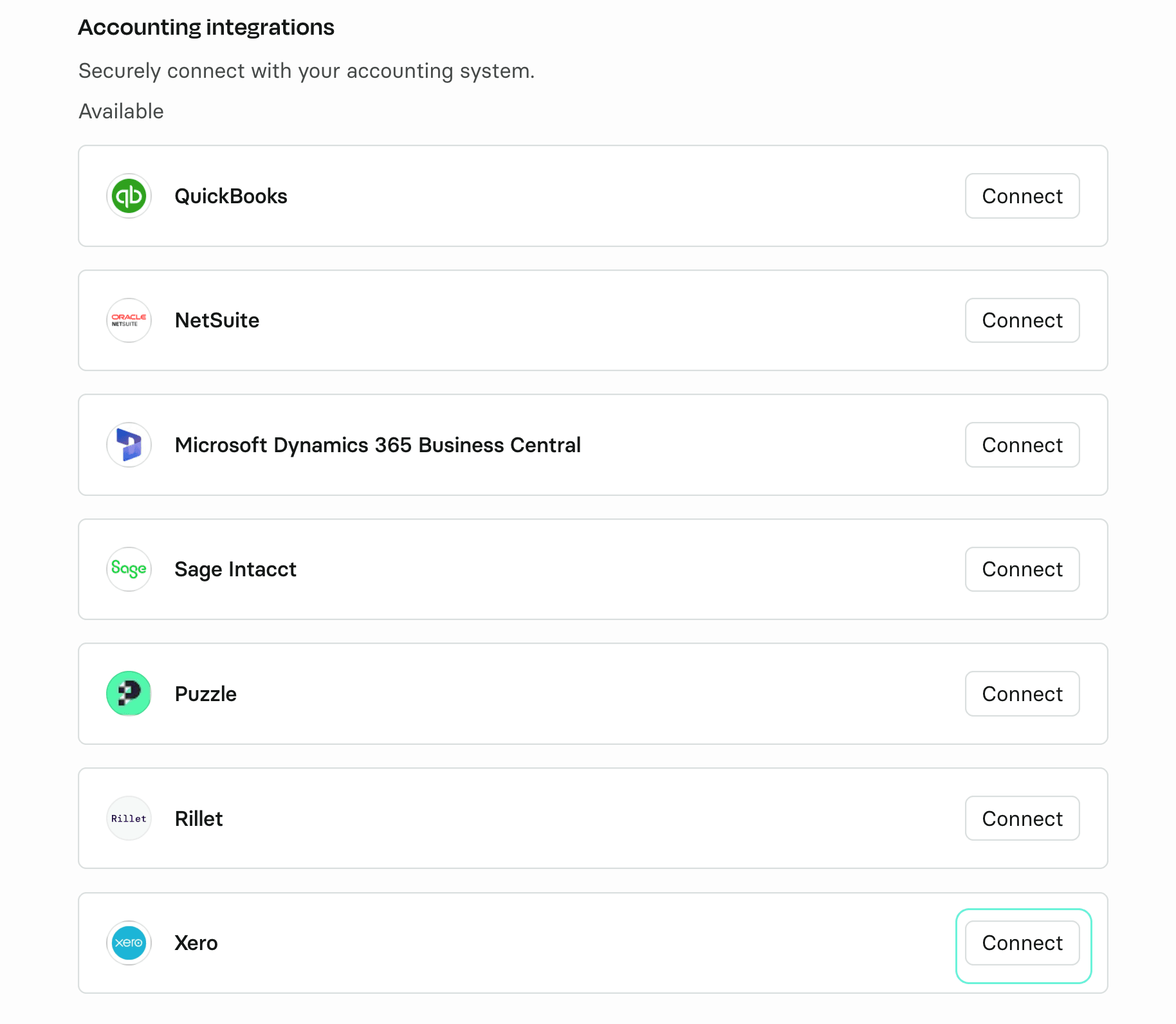
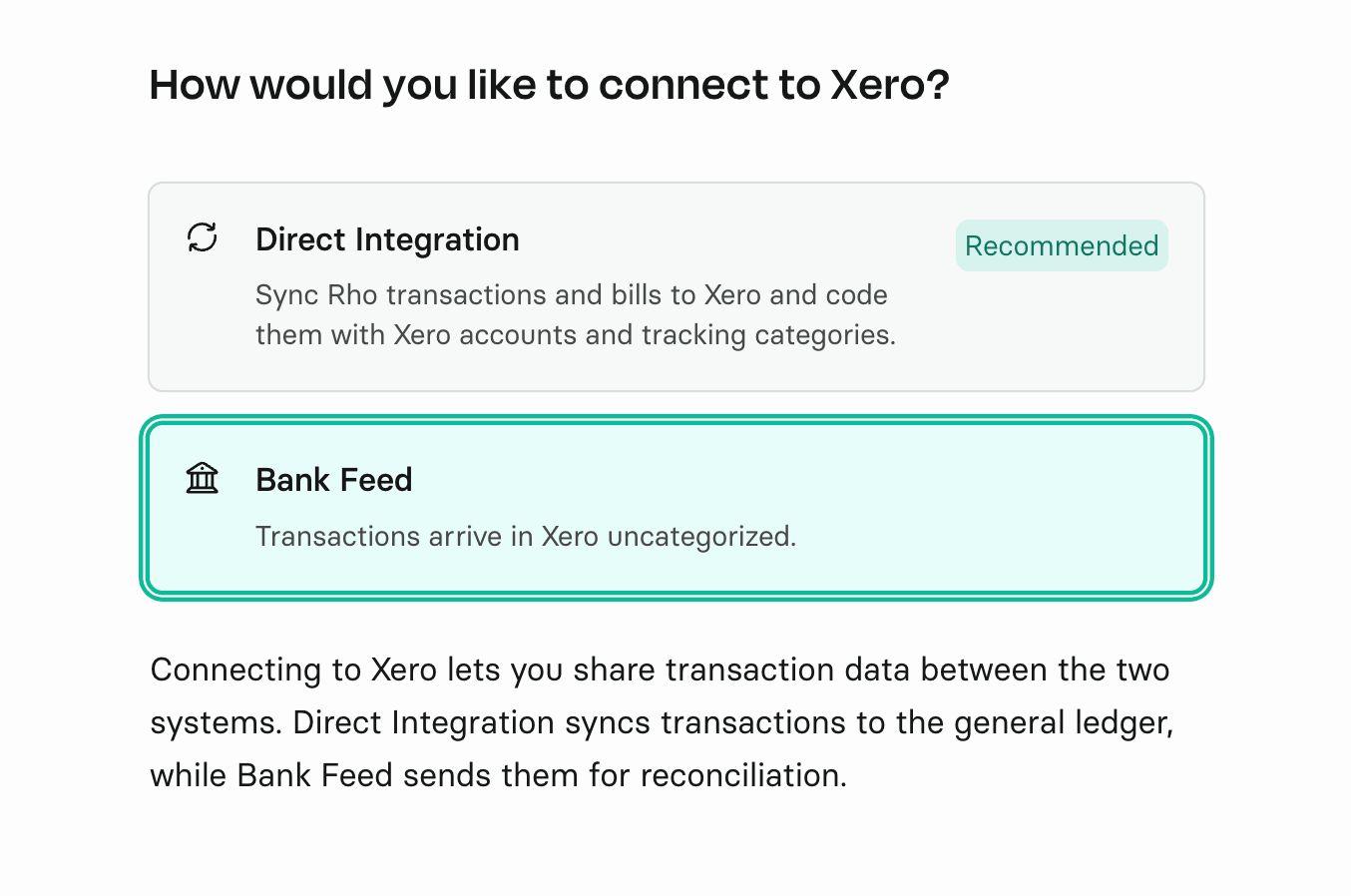
Once you've clicked on the Connect button, you will have the option to choose between Xero bank feed or Xero direct integration. Based on your preferred connection type, please follow the instructions below.
Connecting Xero Bank Feed
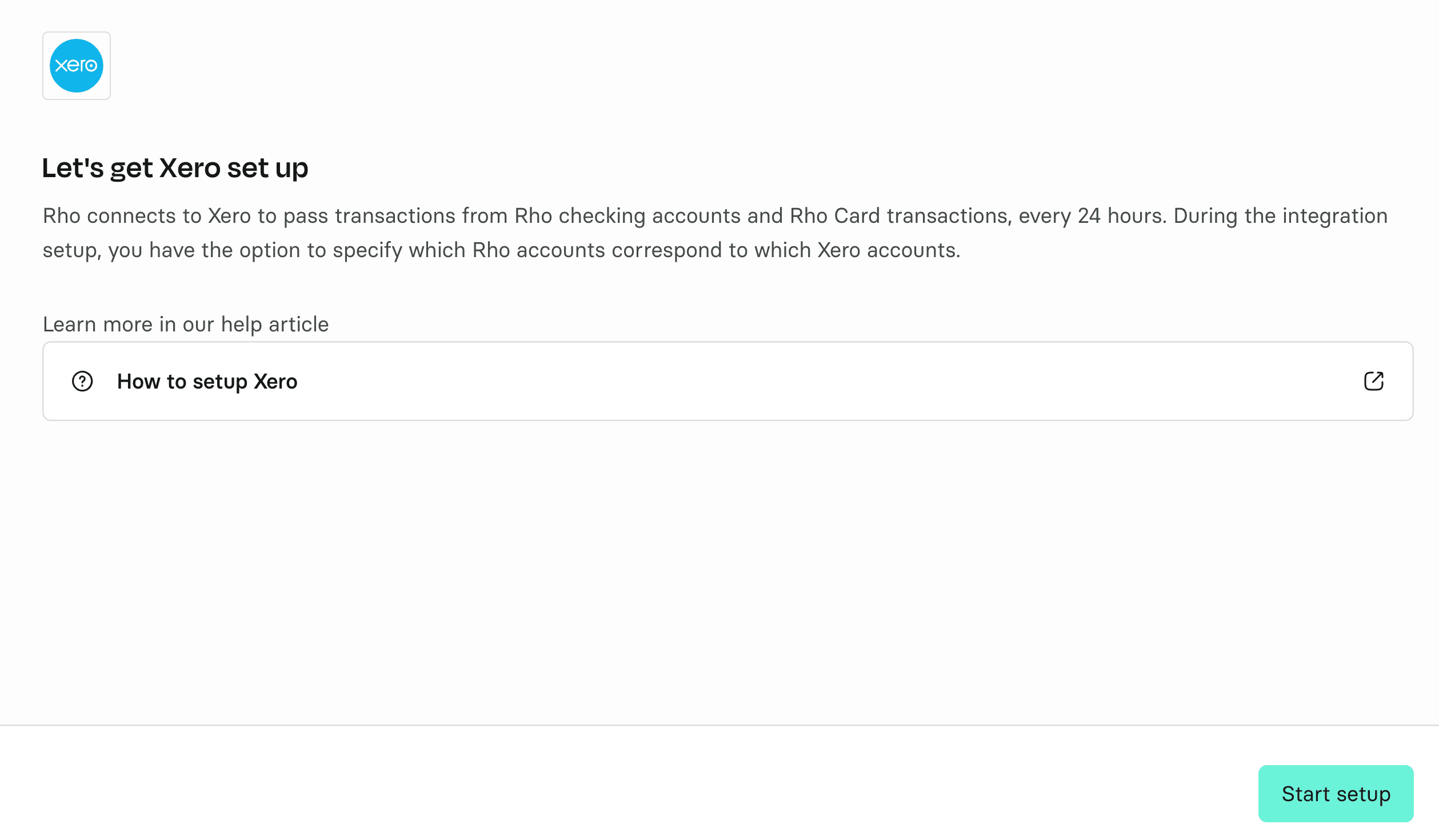
Once you've selected the Bank Feed connection, you will be redirected to the Xero connection. To start the setup, please click on the Start Setup button.
Log in to Xero
Enter your Xero credentials and complete the 2FA required fields. Once logged in, you will be prompted to accept access to set up this connection. Click on Allow Access.
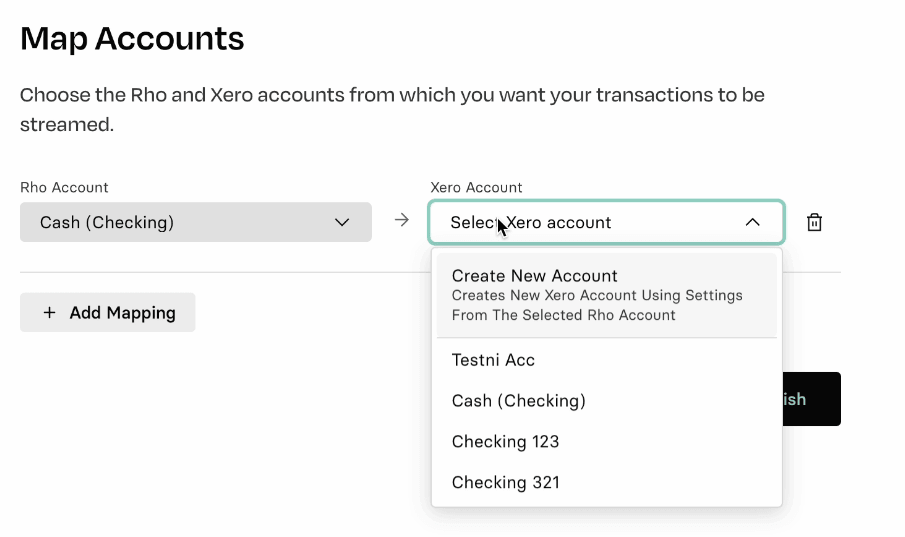
Map Accounts
After completing the login process, you will be given the option to map accounts. At this stage, you can choose the Rho and Xero accounts from which you want your transactions to be streamed. Once you've completed your desired mappings, click on the Finish button.
Setup complete
Congratulations, your Rho account is now set up to integrate with Xero.

Important note: Rho connects to Xero to pass transactions from Rho's checking accounts every 24 hours. The daily bank feed sync runs at 3:00 AM EST.
Connecting Xero Direct Integration
Once you've selected the Direct integration connection, you will be redirected to the Xero connection. Enter your Xero credentials and complete the 2FA required fields. Once logged in, you will be prompted to accept access to set up this connection. Click on Allow Access.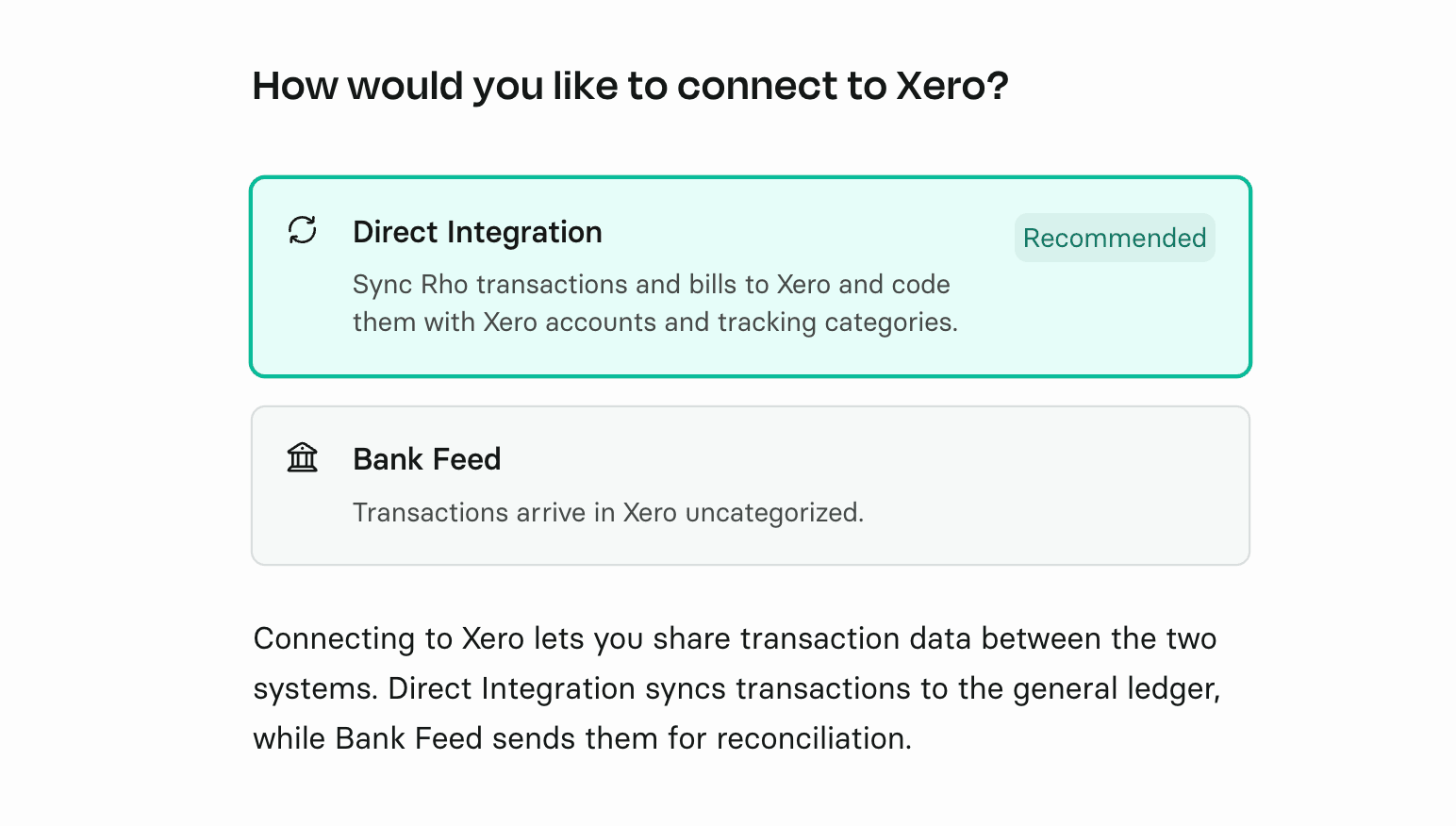
Once you’ve connected to Xero, you will be prompted to configure the accounting setup in Rho.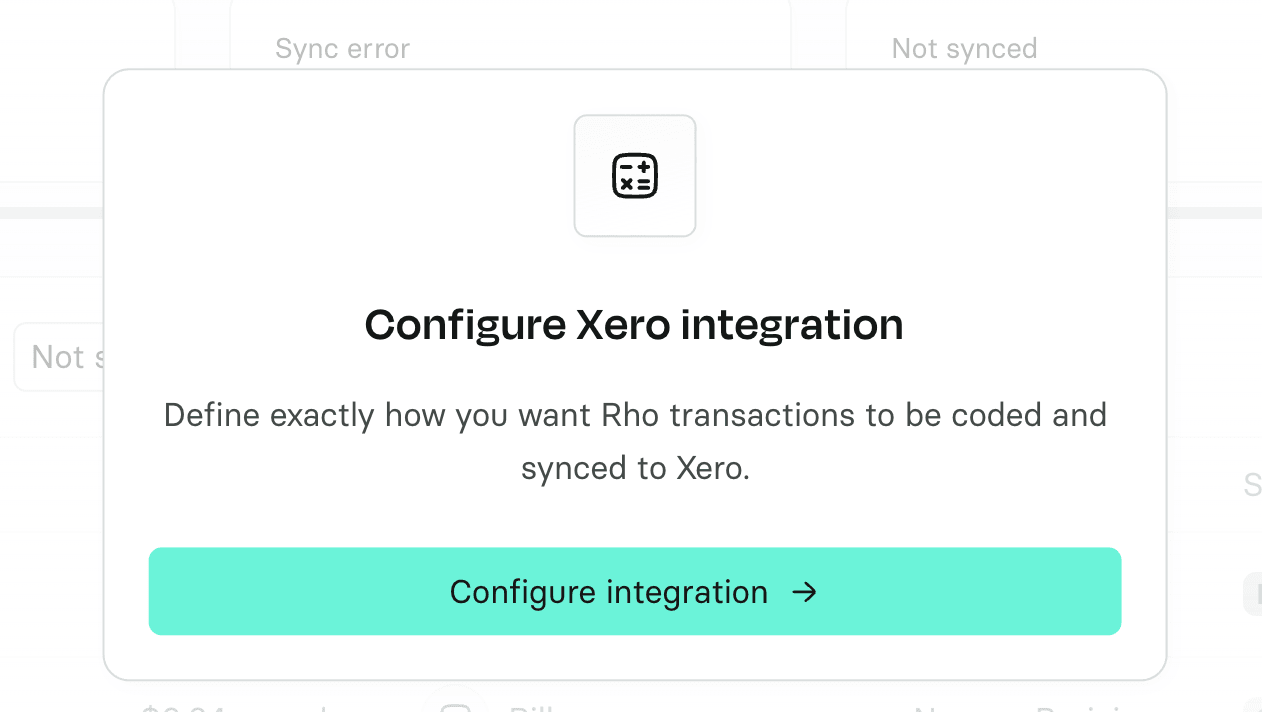
The first step would be to Select your accounting attributes.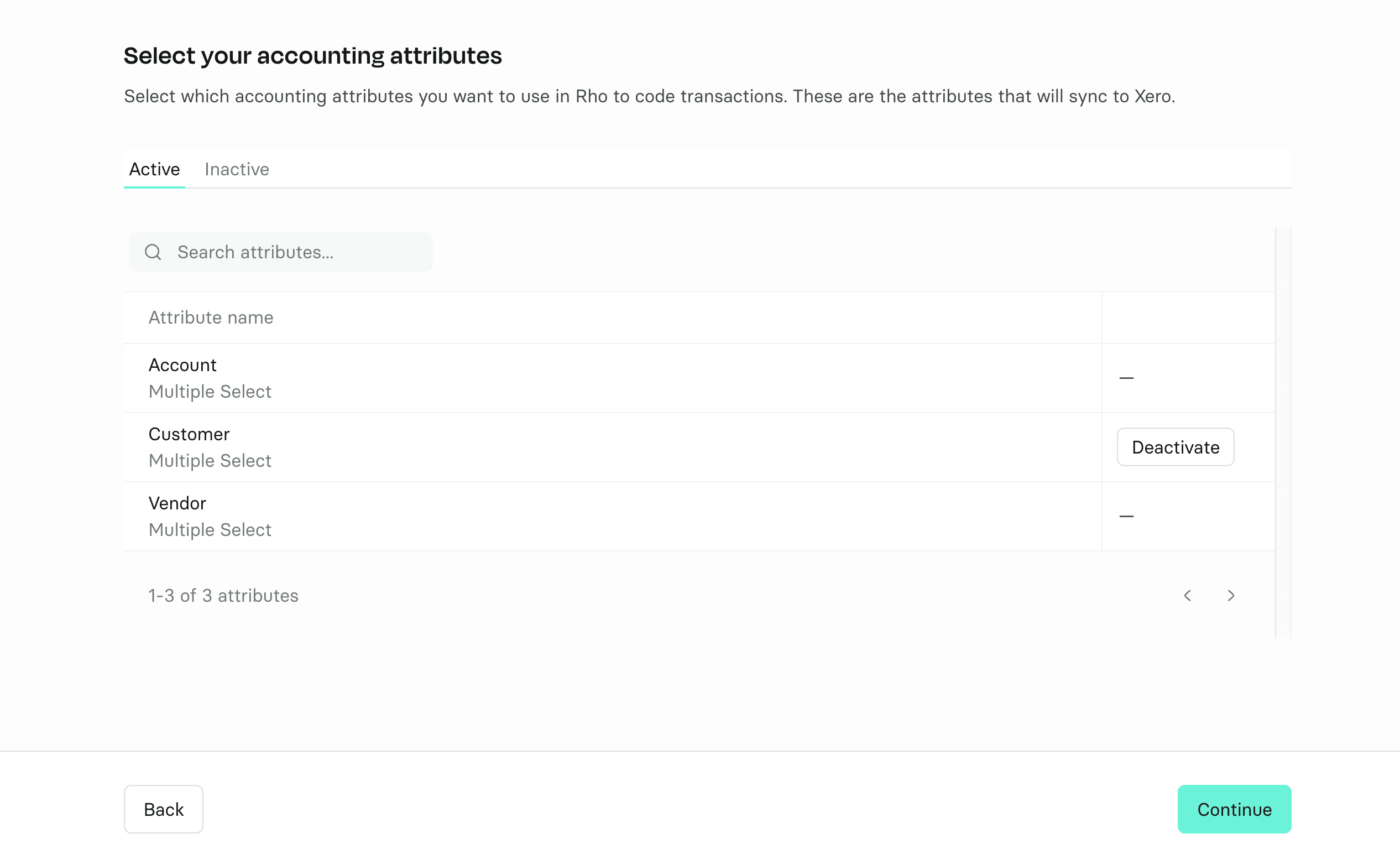
Then select the Mapping for your Accounts.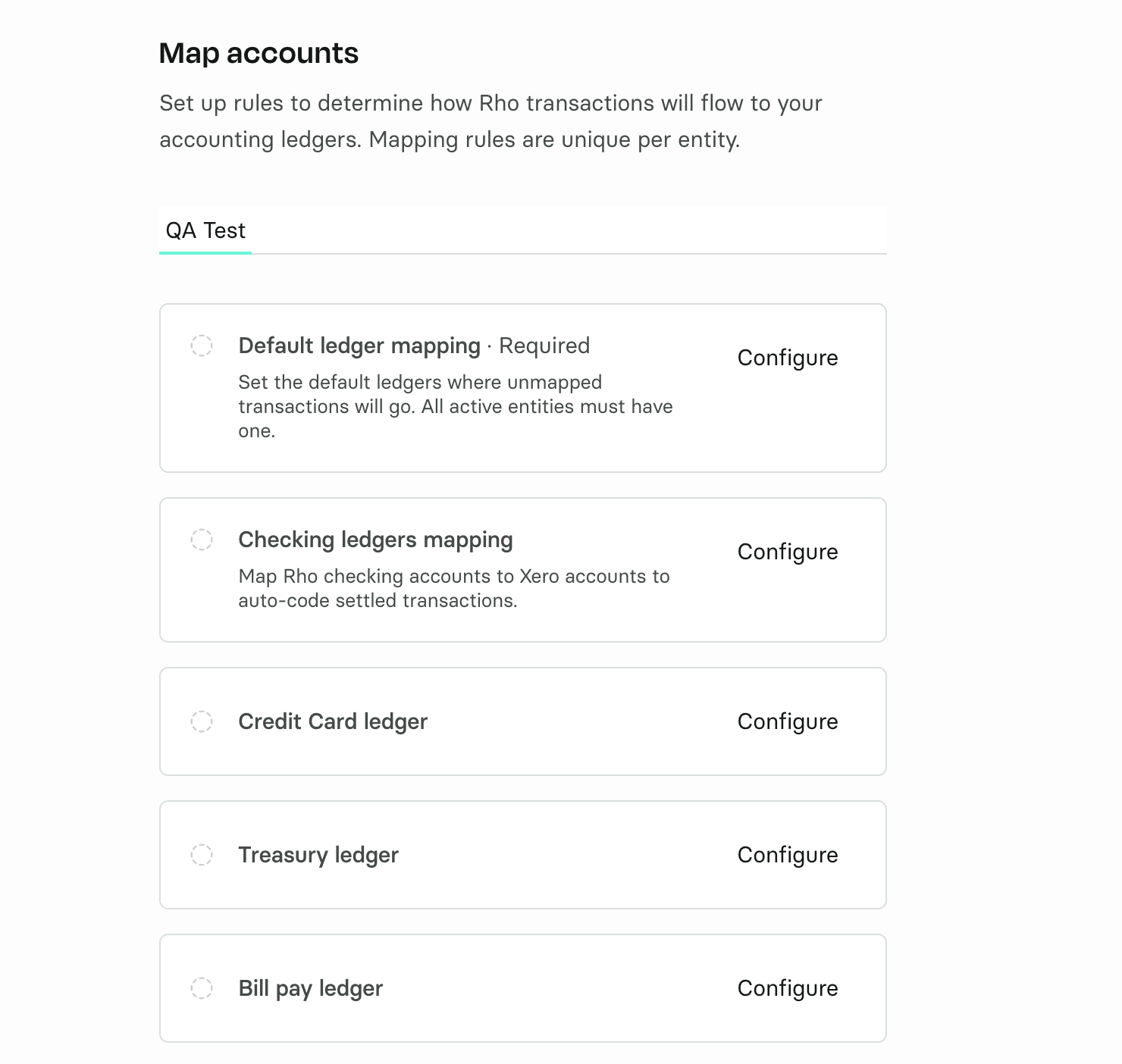
Create Mapping rules (highly recommended, as they can automate consolidation and reduce workload in the long run) if your business needs them.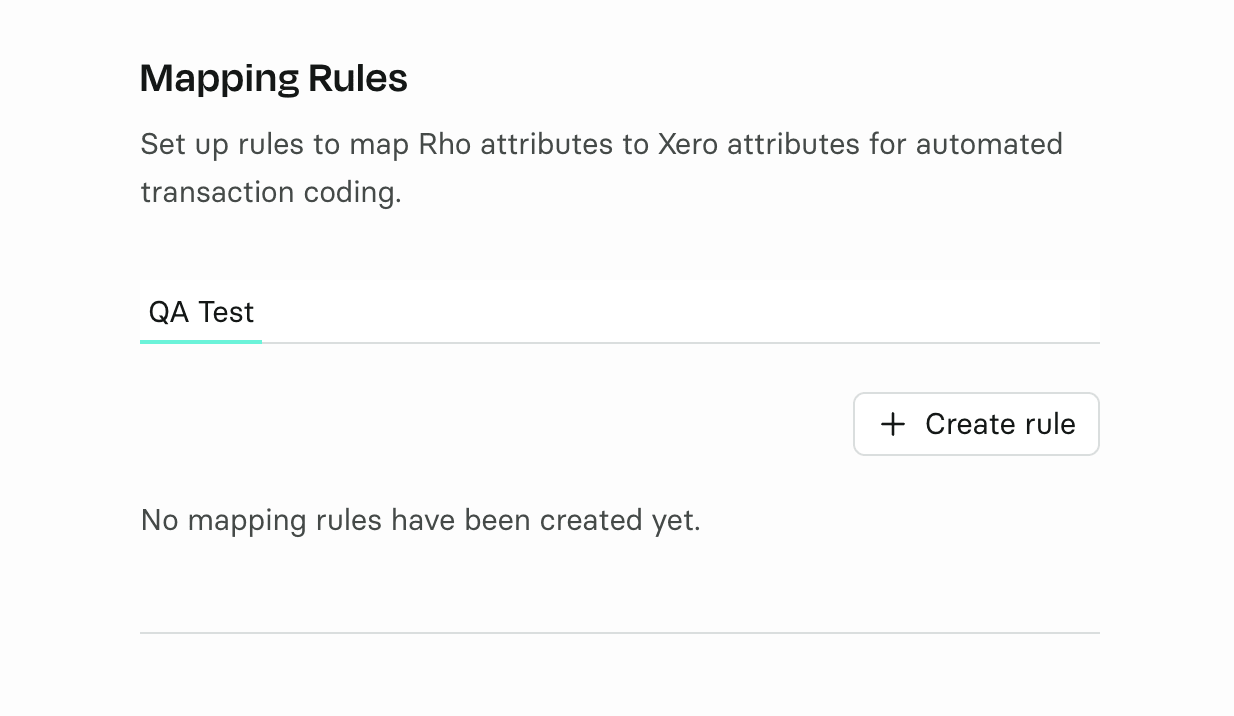
You will also be prompted to set up some General Settings: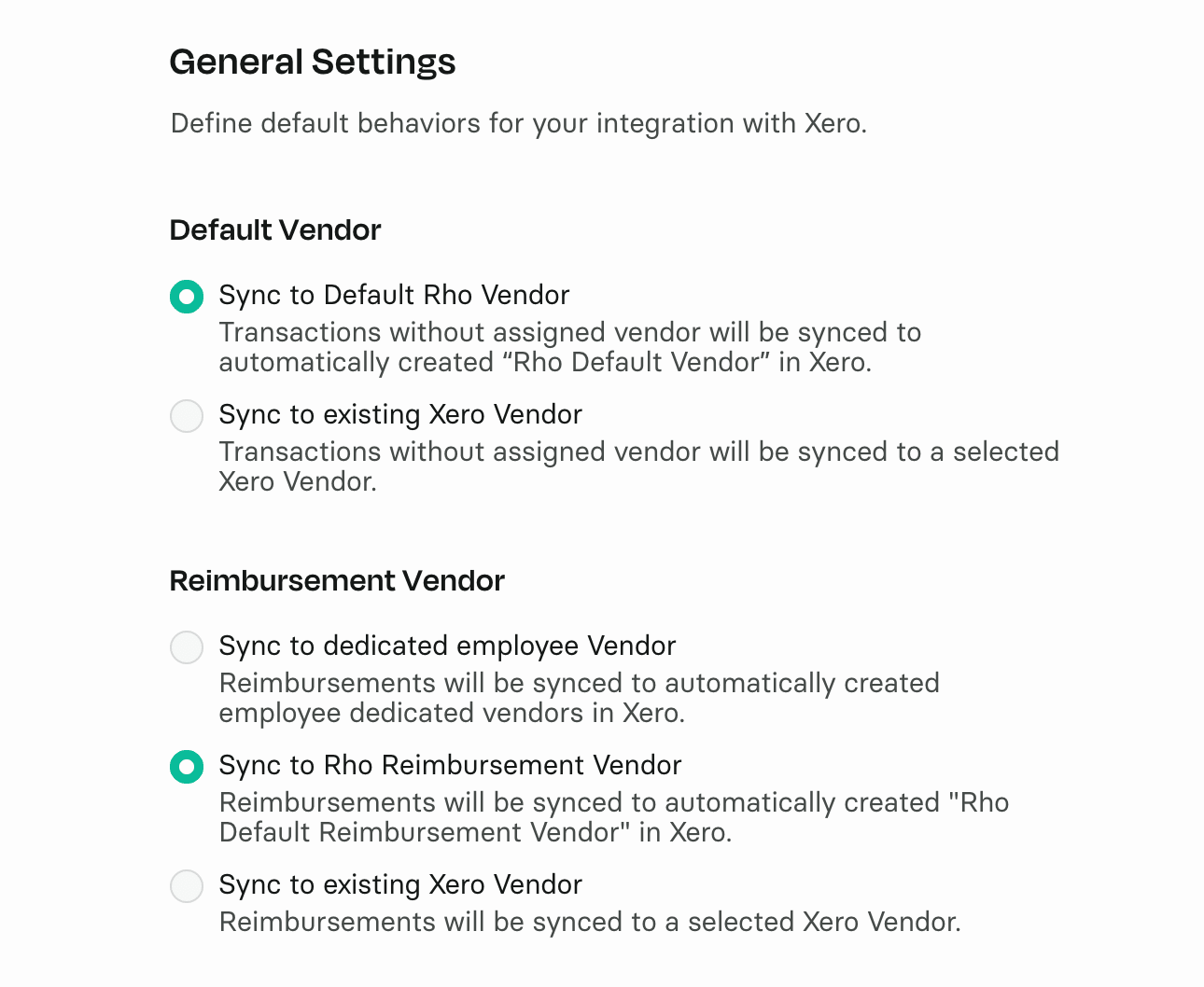
Once the setup has been completed, you will see a Go to the Accounting Dashboard prompt that redirects you to the Accounting tab, where you can sync and code your transactions.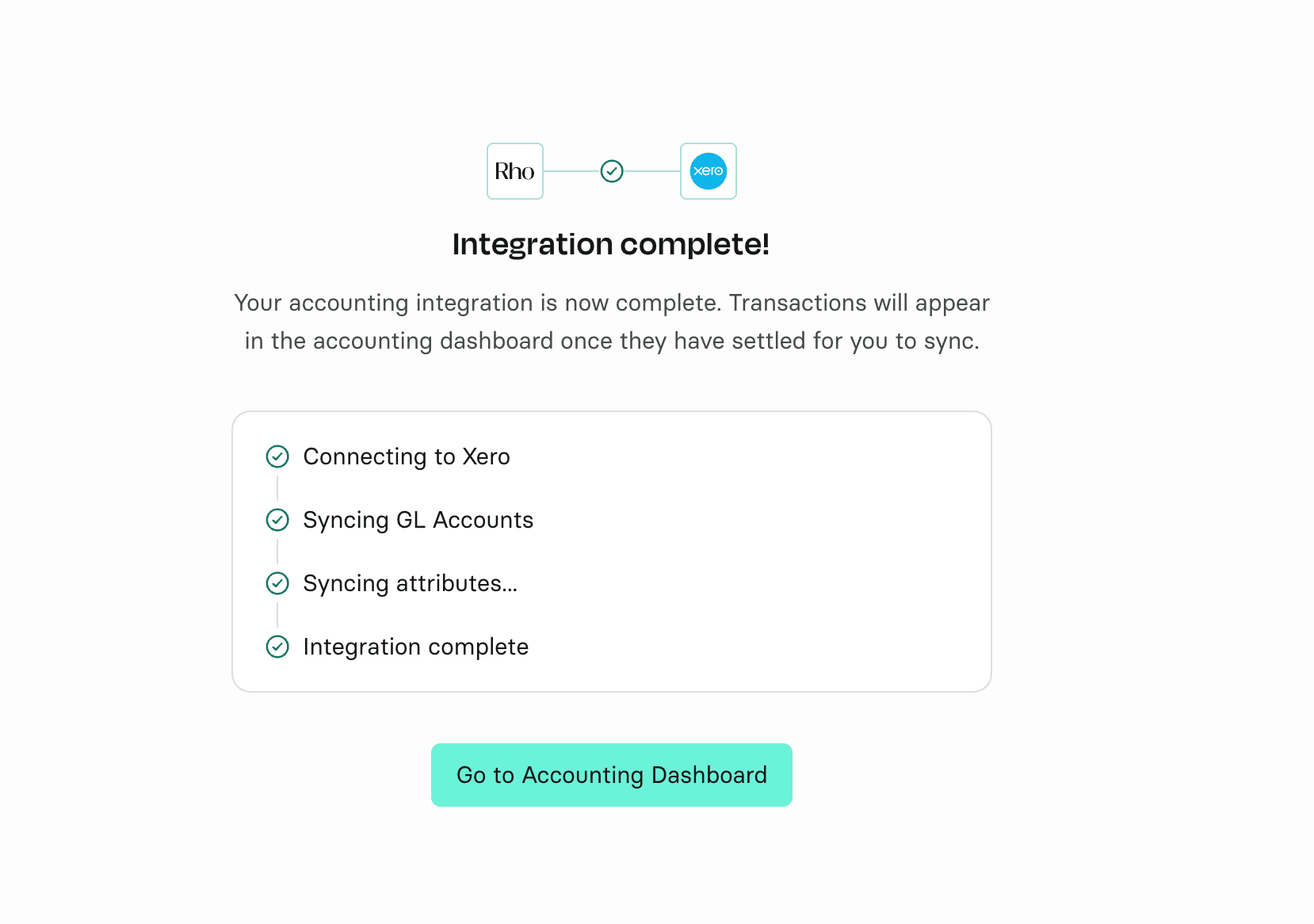
The Accounting tab will look like this once you’ve connected with Xero Direct Integration: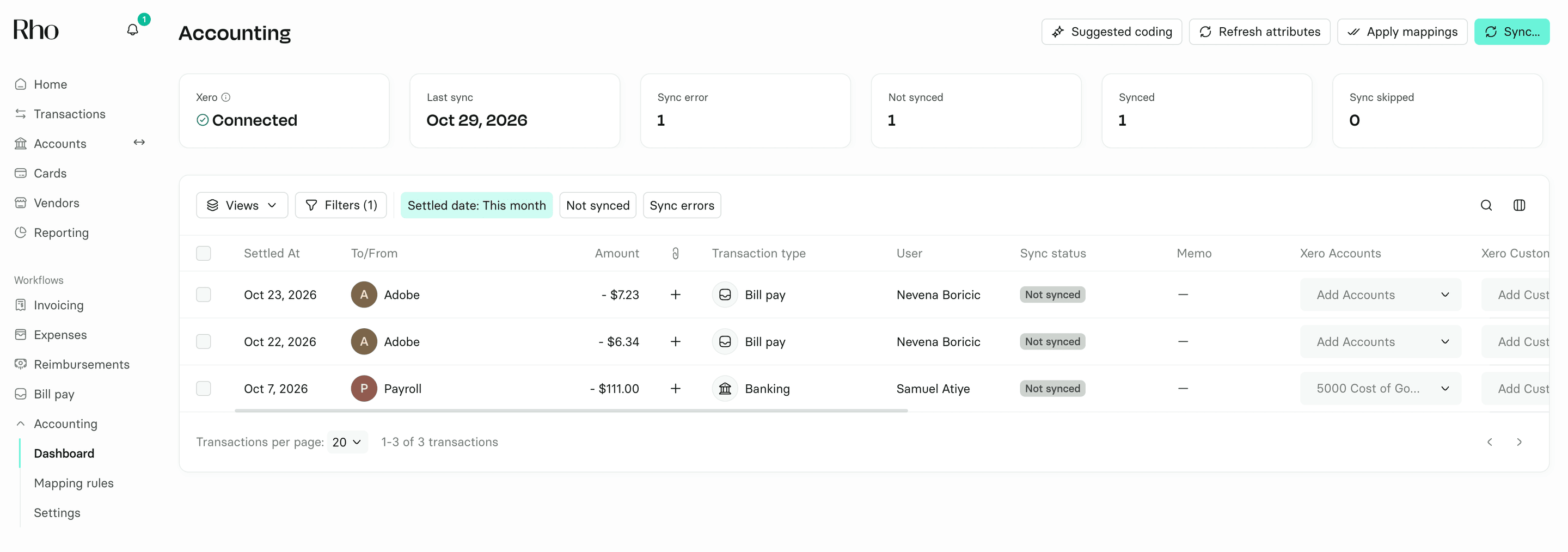
Please note that only one connection type can be active at a time.